Motion Control
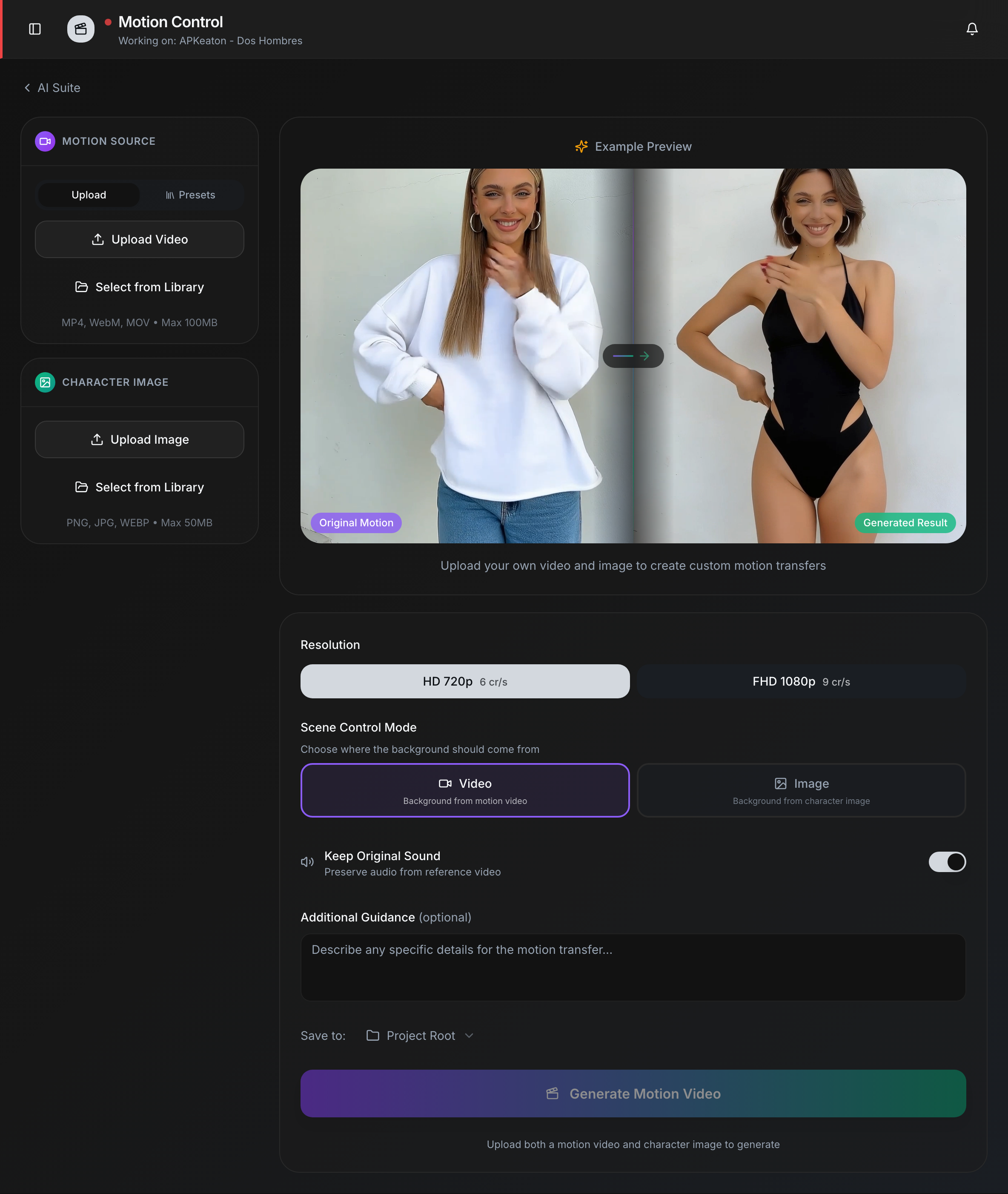
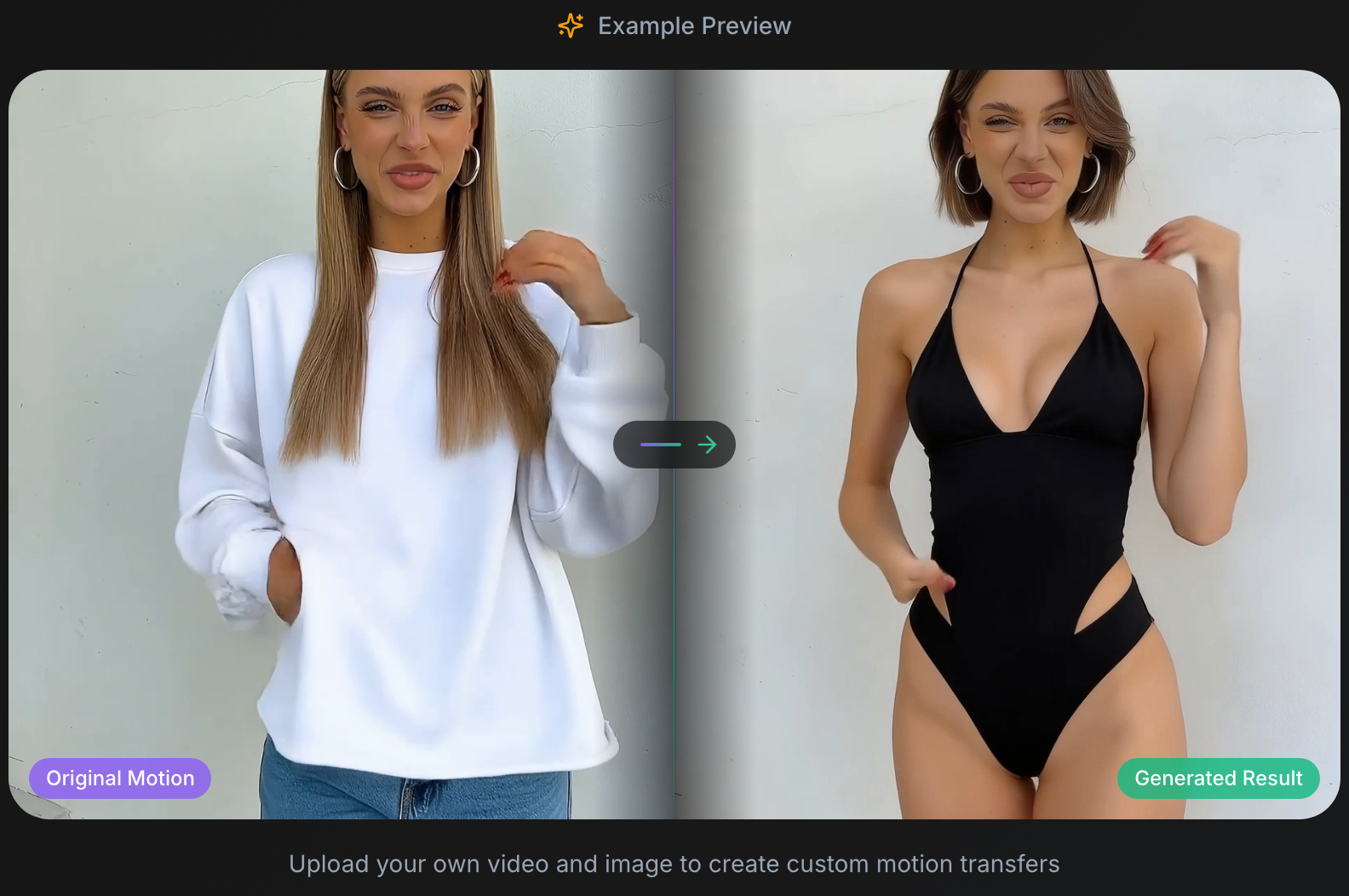
Motion Control transfers the movement from a reference video onto a still character image, producing a new video where your character performs the same actions. This is ideal for creating dynamic content from a single character asset without filming new footage.
How to Use
- Upload a motion source -- provide a reference video whose motion you want to transfer. You can upload a file (MP4, WebM, MOV — max 100MB) or select one from your asset library. You can also browse Presets for ready-to-use motion references.
- Upload a character image -- select a character image (PNG, JPG, WebP — max 10MB) from your assets or your device.
- Configure settings -- set the resolution, scene control mode, and other options (see below).
- Generate -- click Generate Motion Video and the AI produces a video of your character performing the reference motion.
Configuration
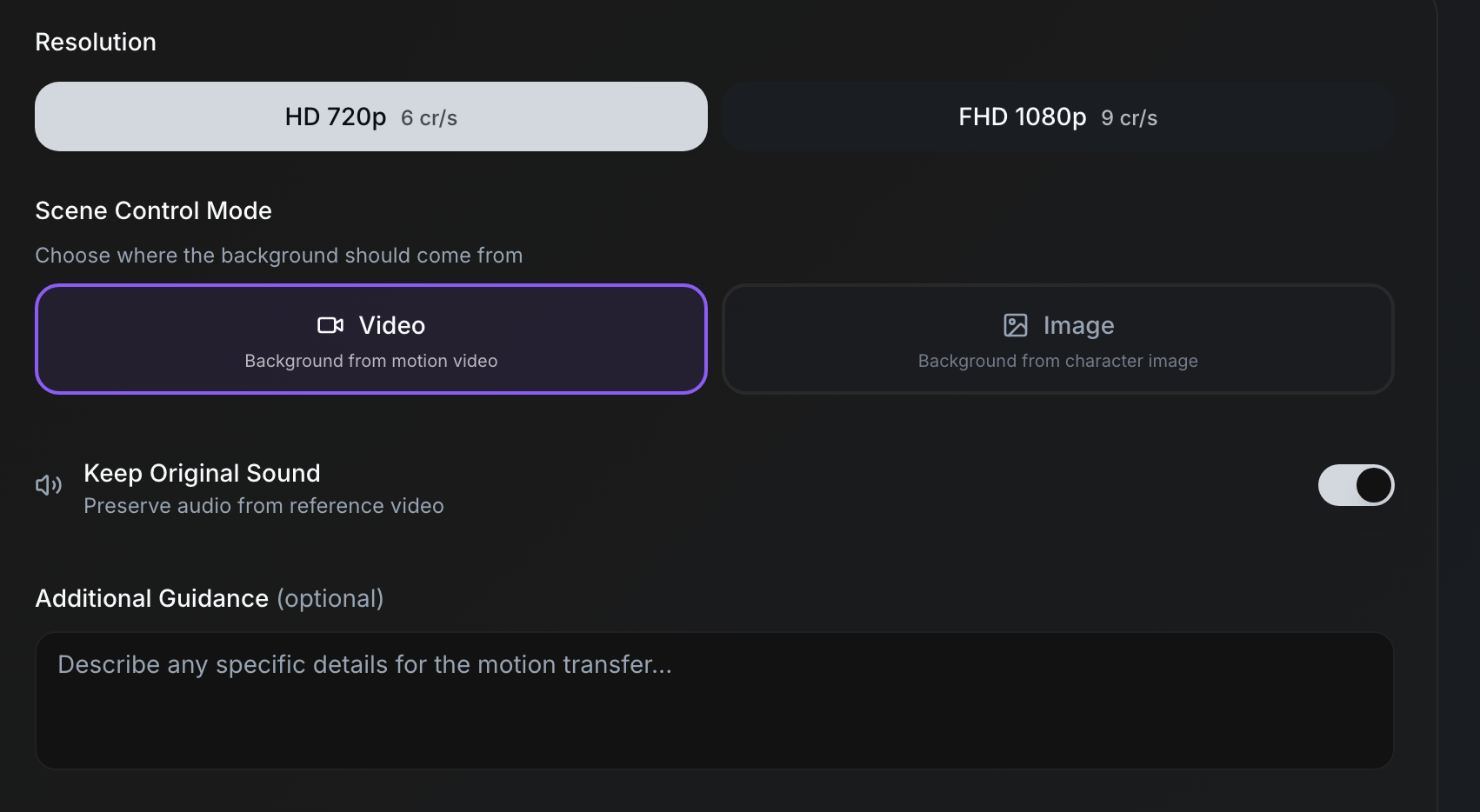
| Option | Values | Description |
|---|---|---|
| Resolution | HD 720p, FHD 1080p | Output video resolution. Higher resolution costs more credits per second. |
| Character orientation | Video / Image | Whether the character should keep the framing of the video reference or the image reference. |
| Keep original sound | On / Off | Preserve the audio track from the reference video in the generated output. |
| Additional guidance | Free text (optional) | Describe any specific details for the motion transfer to guide the AI. |
Credits
Motion Control cost varies by output resolution:
| Resolution | Credits per Second |
|---|---|
| HD 720p | 70 cr/s |
| FHD 1080p | 120 cr/s |
info
The total credit cost depends on the length of your reference video and the selected resolution. Shorter reference clips keep costs lower while still producing compelling results.
tip
For best results, choose a reference video where the subject's body is fully visible and performs clear, distinct movements. Avoid reference videos with rapid camera movement or multiple overlapping subjects.
Related Pages
- AI Suite Overview
- Avatar Generator -- create talking head videos instead
- Characters -- manage reusable character assets
- Credits System